
✨ New feature alert
This feature is available from Thursday, 19th November 2026.
Overview
You can now record a learner's Inclusion information in Enrol Onboarding. Staff can add it on the learner record, or learners can complete it themselves on a form.
When the learner moves into Onefile Eportfolio and Tracker, their Inclusion information goes with them, so it doesn't need to be entered again.
Inclusion is switched off by default. Admins choose which Inclusion sections your Centre uses.
User Roles
This feature can be used by:
- Admin
The Five Inclusion Sections
| Section | What it records |
|---|---|
| Monitoring Information | Monitoring codes, such as HNS (High needs students) and EHC (Education Health Care plan), with the academic years they apply to |
| Additional Learner Characteristics | Characteristics that apply to the learner |
| Learning Styles & Preferences | The learner's preferred ways of learning |
| Barriers to Learning | Barriers that affect the learner's learning, with dates and impact |
| Support Needs | Support the learner needs, with dates and a description |
Steps to Switch On Inclusion
- Click Settings in the navigation menu.
- Open the Inclusion tab.
- Switch on Use Inclusion.
- Under Sections to show, tick the sections your Centre wants to use. You can choose any combination, but you must tick at least one.
- Click Save changes.
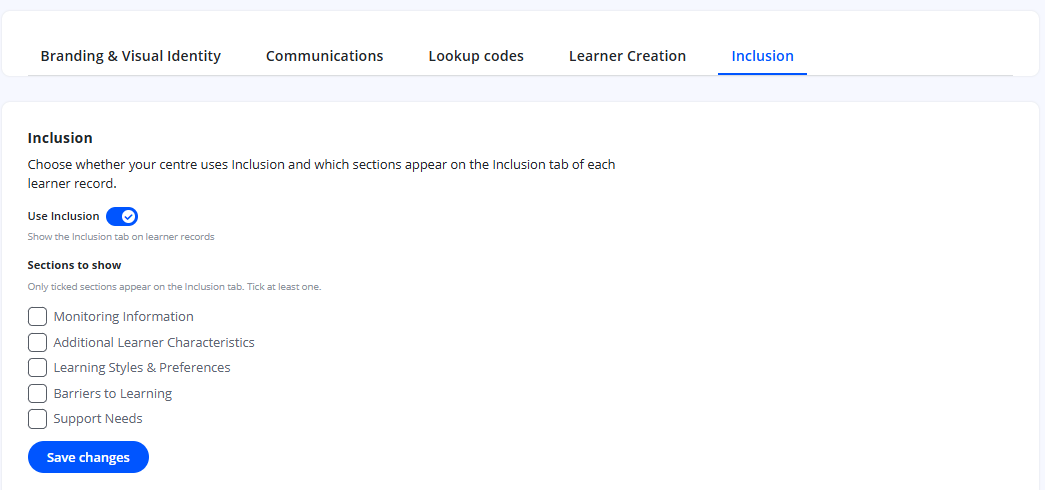
What the Sections You Tick Control
Only the sections you tick:
- appear on the Inclusion tab of the learner record
- are available as widgets in Form Builder
- are sent to Onefile Eportfolio
How Information Is Passed to Onefile Eportfolio and Tracker
The learner's Inclusion information is included when the learner is created or updated in Onefile Eportfolio from Enrol Onboarding. Only the sections ticked in Settings are sent.
⚠️ Important: The lists used in each section (for example, the barrier types and support need types) are managed in Onefile Eportfolio. To add or change a list value, make the change in Onefile Eportfolio.
Tips & Notes
- Tick only the sections your Centre will use, so the learner record and forms stay focused.
- To record Inclusion information, see Record a Learner's Inclusion Information in Enrol Onboarding.
- To let learners complete it themselves, see Add Inclusion Sections to a Form in Enrol Onboarding.
Terminology
The terminology used in this article may differ depending on your Centre's configuration.
Related Articles
- Record a Learner's Inclusion Information in Enrol Onboarding
- Add Inclusion Sections to a Form in Enrol Onboarding
- Managing your value lists (Settings → Lookups)
- Enrol Onboarding Transfer to Other Products
Need Help?
If you need assistance, please contact Onefile Support or your internal support team.