
✨ New feature alert
This feature is available from Thursday 22nd October 2026.
Overview
Admins can now manually mark a learner's workflow step as complete. This includes integration steps such as BKSB, SkillsForward and Cognassist, which would usually complete automatically.
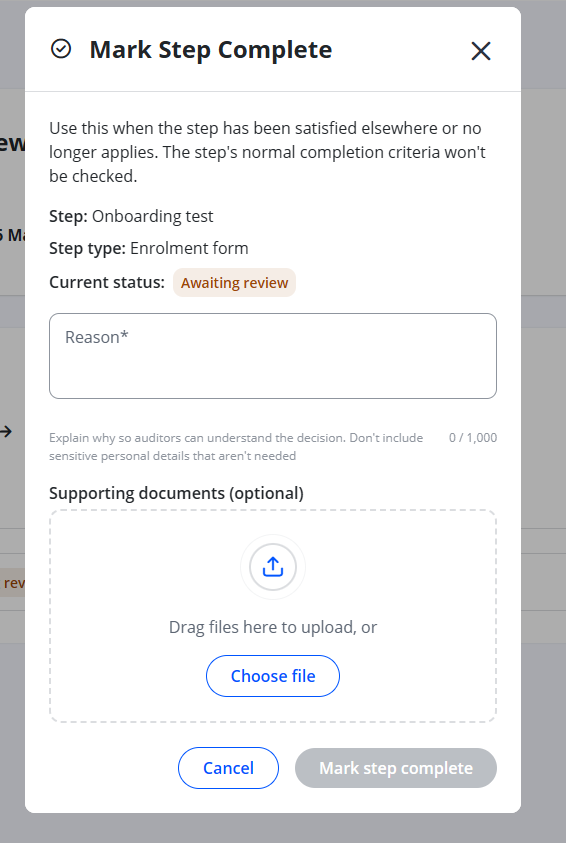
This helps when a step can't complete on its own. For example, the learner may have done the assessment outside the integration, or an integration issue may be stopping the step from updating. To keep a clear audit trail, you need to give a reason and a description each time you complete a step manually.
User Roles
This feature can be used by:
- Admins
Steps to Manually Complete a Workflow Step
- Open the learner's workflow and select the step you want to mark as complete.

- Choose a reason for the manual completion from the drop-down list.
- Enter a description explaining why you're completing the step manually.
- If you'd like, add evidence to support the completion.
- Save to mark the step as complete.
Tips & Notes
- The reason and description are saved with the step. You can see them when you view the step and in the activity log.
- Make the description specific, such as where the learner completed the assessment or what stopped the integration from updating. This helps anyone who checks the record later.
- Evidence is optional, but adding it gives stronger support for audit and compliance checks.
- You can complete integration steps (BKSB, SkillsForward and Cognassist) manually as well as standard workflow steps.
⚠️ Important: Only complete a step manually when you're sure it has been met. Every manual completion is recorded in the activity log with the reason and description you give.
Terminology
The terminology used in this article may differ depending on your Centre's configuration.
Related Articles
- Managing Learner Workflows
- Viewing the Activity Log
- Setting Up BKSB, SkillsForward and Cognassist Integrations
Need Help?
If you need assistance, please contact Onefile Support or your internal support team.