
✨ New feature alert
This feature is available from Thursday, 19th November 2026.
Overview
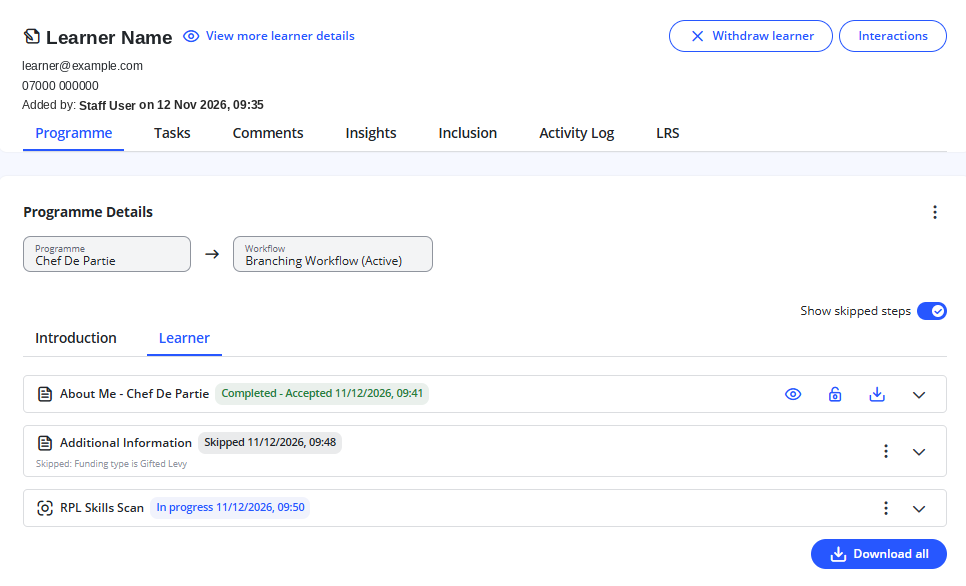
When a workflow has conditional steps, some steps are skipped automatically for learners they don't apply to. Staff can see every skipped step on the learner record, along with the reason it was skipped. Admins can also skip or reinstate any incomplete step by hand, for example when a learner's circumstances need a different route.
User Roles
| Task | Admin | User (for example, a tutor) |
|---|---|---|
| View skipped steps and reasons | Yes | Yes |
| Skip or reinstate a step | Yes | No |
Steps to View a Learner's Skipped Steps
- Click Learners from the left-hand navigation menu.
- Click the three dots next to the learner and select View.
- Look through the learner's workflow. Skipped steps are shown with the reason, for example Skipped: LLDD = No.
Every skip is also recorded in the learner's Activity Log.
Steps to Skip or Reinstate a Step
- Open the learner's record, as above.
- Select the incomplete step you want to change.
- Choose to skip the step, or to reinstate it if it's currently skipped.
- Enter a reason.
- If your Centre uses reason categories, choose one. This is optional.
- Save your change.
⚠️ Important: Only incomplete steps can be skipped or reinstated.
Setting Up Reason Categories
Admins can create reason categories in Settings › Lookup codes, so skips and reinstatements are recorded consistently.
When Steps Are Checked Again
If an earlier form answer changes, or an Admin corrects a learner record value that a condition uses, the learner's steps are checked again.
| If the step is… | What happens |
|---|---|
| Not started | It's checked again automatically and may be skipped or added back. The learner is told if a step is added back. |
| In progress or completed | It's never changed automatically. Staff see a Condition no longer met: review banner, so they can decide whether to skip it. |
What Learners and Employers See
- Skipped steps are hidden from learners and employers.
- The learner's progress percentage only counts the steps that apply to them.
- Forms on skipped steps don't appear in task lists and don't send notifications.
Tips & Notes
- If you see a Condition no longer met: review banner, check the learner's latest details before deciding whether the step is still needed.
- Give a clear reason whenever you skip or reinstate a step, so anyone checking the record later understands why.
Terminology
The terminology used in this article may differ depending on your Centre's configuration.
Related Articles
- Make Workflow Steps Conditional in Enrol Onboarding
- How to Manually Complete a Learner Workflow Step
- View a Learner's Activity Log in Enrol Onboarding
- View learners within Enrol Onboarding