
✨New feature alert
This feature is available from Thursday, 19th November 2026.
Overview
Comment categories help you organise the comments added to a learner's record. Admins set up the categories your Centre needs, and anyone adding a comment can choose one. You can then filter a learner's Comments tab by category to find the comments you need quickly.
User Roles
| Task | Admin | User |
|---|---|---|
| Add, edit and delete comment categories | Yes | No |
| Choose a category when adding a comment | Yes | Yes |
| Filter comments by category | Yes | Yes |
Steps to Set Up Comment Categories
- Click Settings in the navigation menu.
- Click Lookup codes.
- In the code category selector, choose Comment Categories.
- Click to add a new comment category.
- Enter a clear name for the category.
- Click Save.
You can edit or delete a category from the same list.
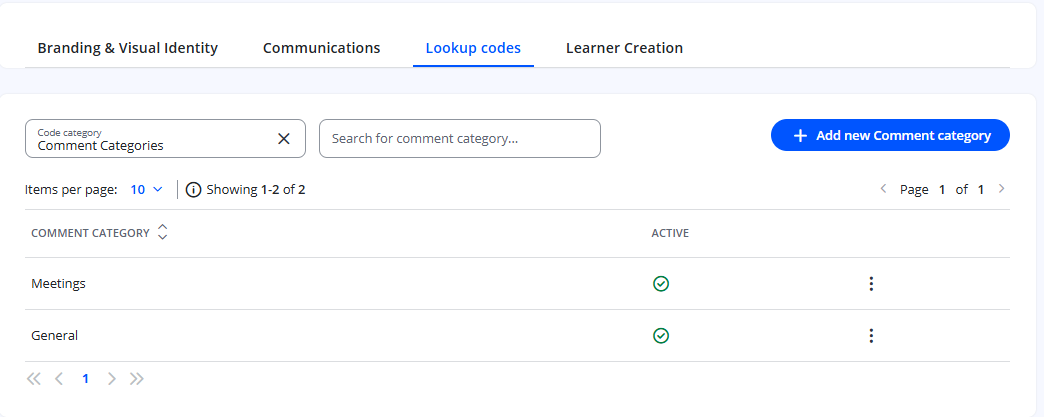
Steps to Add a Comment with a Category
- Click Learners from the left-hand navigation menu.
- Click the three dots next to the learner and select View.
- Open the Comments tab.
- Add your comment.
- Choose a category, if you want to. This is optional.
- Save the comment.
Each comment shows its category on the Comments tab.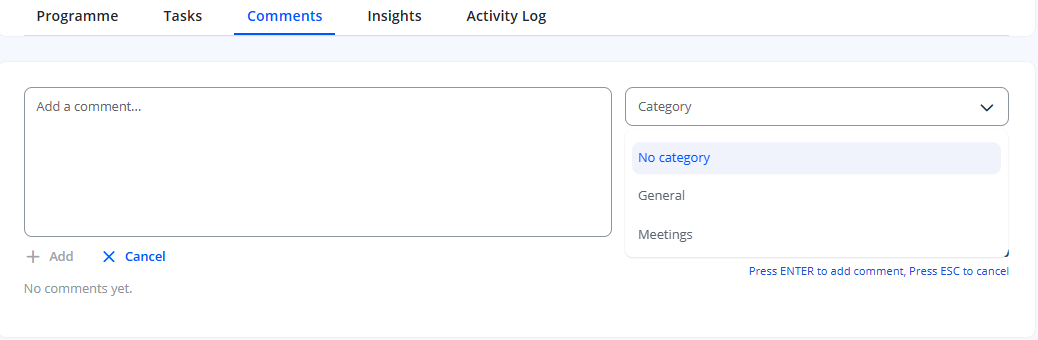
Steps to Filter Comments by Category
- Open the learner's Comments tab.
- Use the category filter to choose the category you want to see.
Tips & Notes
- Keep category names short and consistent, so they're easy to choose and filter by.
- Comments without a category are still saved and shown as normal.
Terminology
The terminology used in this article may differ depending on your Centre's configuration.
Related Articles
- View learners within Enrol Onboarding
- View a Learner's Activity Log in Enrol Onboarding
- Add Manual Completion Reasons in Enrol Onboarding
Need Help?
If you need assistance, please contact Onefile Support or your internal support team.